Step 1:
Open the meeting/webinar link.
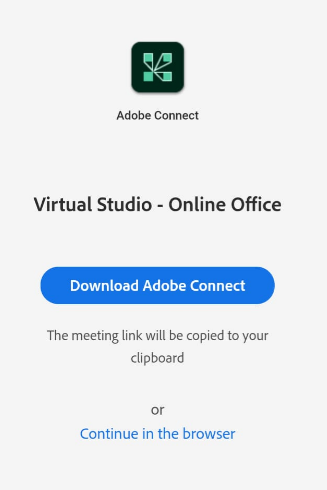
If you are joining first time in Adobe Connect meeting, you may ‘Download Adobe Connect’ mobile app, or can ‘Continue in the browser’,
Next, Type your name, and tap on ‘Continue’ to join as a Guest.
Note: You will need to disconnect any ongoing phone/video call to free your mic and speaker for the online connect.
Step 2:
Select your audio and video options and tap on ‘Request Entry’ to join.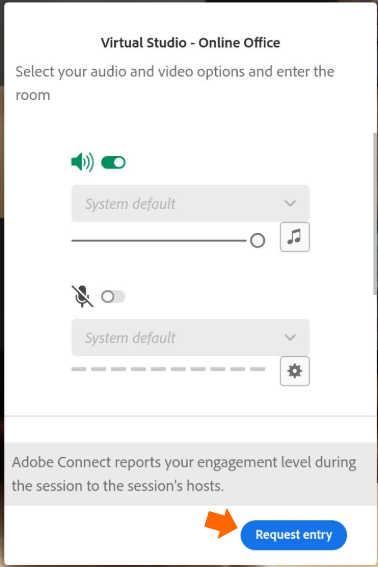
Step 3:
Before speaking – Tap on Mic icon (from bottom) to activate. (Once activated, it will turn green. You’ll know your mic is on.)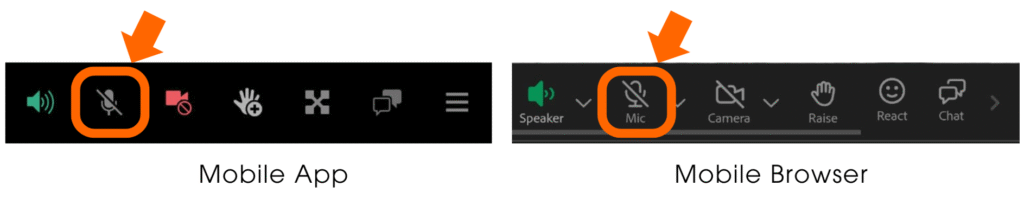
Step 4:
To watch the shared screen, tap on the Share icon (from the top) to view it.
Step 5:
Also, rotate your phone to view the shared screen in landscape mode(for a larger view, if need).
Step 1:
Open the meeting/webinar link. If you are joining first time in Adobe Connect meeting, you may ‘Download Adobe Connect’.
Type your name, and click on ‘Continue’ to join as a Guest. Next, click on ‘Request entry’. Ideally, check your mic and speaker before joining in, so that you can hear & be heard in the meeting. 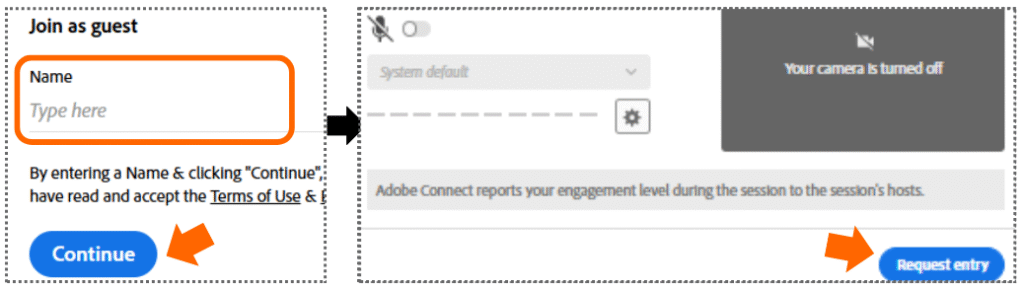
Step 2:
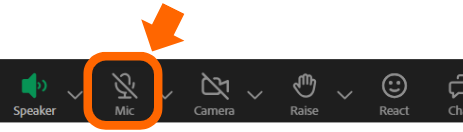
Once in the room, before speaking, click on the grey mic icon (located at the top left). It will be active and turn green as shown below.